Have you ever noticed your laptop becoming unusually slow when you open multiple applications or switch between browser tabs? Sometimes, even simple tasks like opening a document, browsing the internet, or attending an online meeting can become frustrating. One possible reason behind this problem is high memory usage.
RAM plays an important role in how smoothly a laptop performs. It allows your system to handle multiple applications and tasks at the same time. When most of the available memory is occupied, your laptop may start slowing down, applications may freeze, and you might even receive out-of-memory warnings.
The good news is that high RAM usage does not always mean your laptop needs a hardware repair. In many cases, unnecessary background applications, too many browser tabs, or software issues are responsible. Let's understand what causes high memory usage and how you can fix it.
What Is High Memory Usage?
RAM (Random Access Memory) is where your laptop temporarily stores the information required by running applications and the operating system.
For example, when you open Google Chrome, play music, work on a document, or attend a video meeting, your laptop uses RAM to keep these applications running.
High memory usage occurs when most of your available RAM is being used by Windows and running applications. When there isn't enough physical memory available, Windows may use virtual memory (also called a page file) to manage additional memory requirements.
However, storage drives are generally slower than RAM. As a result, relying heavily on virtual memory can make your laptop feel less responsive.
This is why a laptop with limited RAM may struggle when several applications are running together, even if the processor is reasonably powerful.
Common Signs of High RAM Usage
Not sure whether memory consumption is causing your laptop to slow down? Here are some common signs to look out for.
1. Frequent Out-of-Memory Warnings
You may occasionally see messages saying that your computer is running low on memory. Some applications might stop responding, crash unexpectedly, or fail to open.
2. Laptop Becomes Slow During Multitasking
If your laptop works fine with one application but becomes slow when you open several programs, limited available RAM could be the reason.
Switching between applications, opening files, and performing everyday tasks may take longer than usual.
3. Browser Tabs Keep Freezing
Browsers like Chrome and Edge can consume a considerable amount of memory, especially when you have several tabs and extensions running.
If your laptop frequently freezes while browsing, excessive browser memory usage could be contributing to the problem.
4. Applications Suddenly Stop Responding
Memory-intensive applications such as video editors, graphic design tools, and games require more RAM to operate smoothly. When available memory becomes limited, these applications may freeze or close unexpectedly.
5. High Memory Usage Even When Nothing Is Open
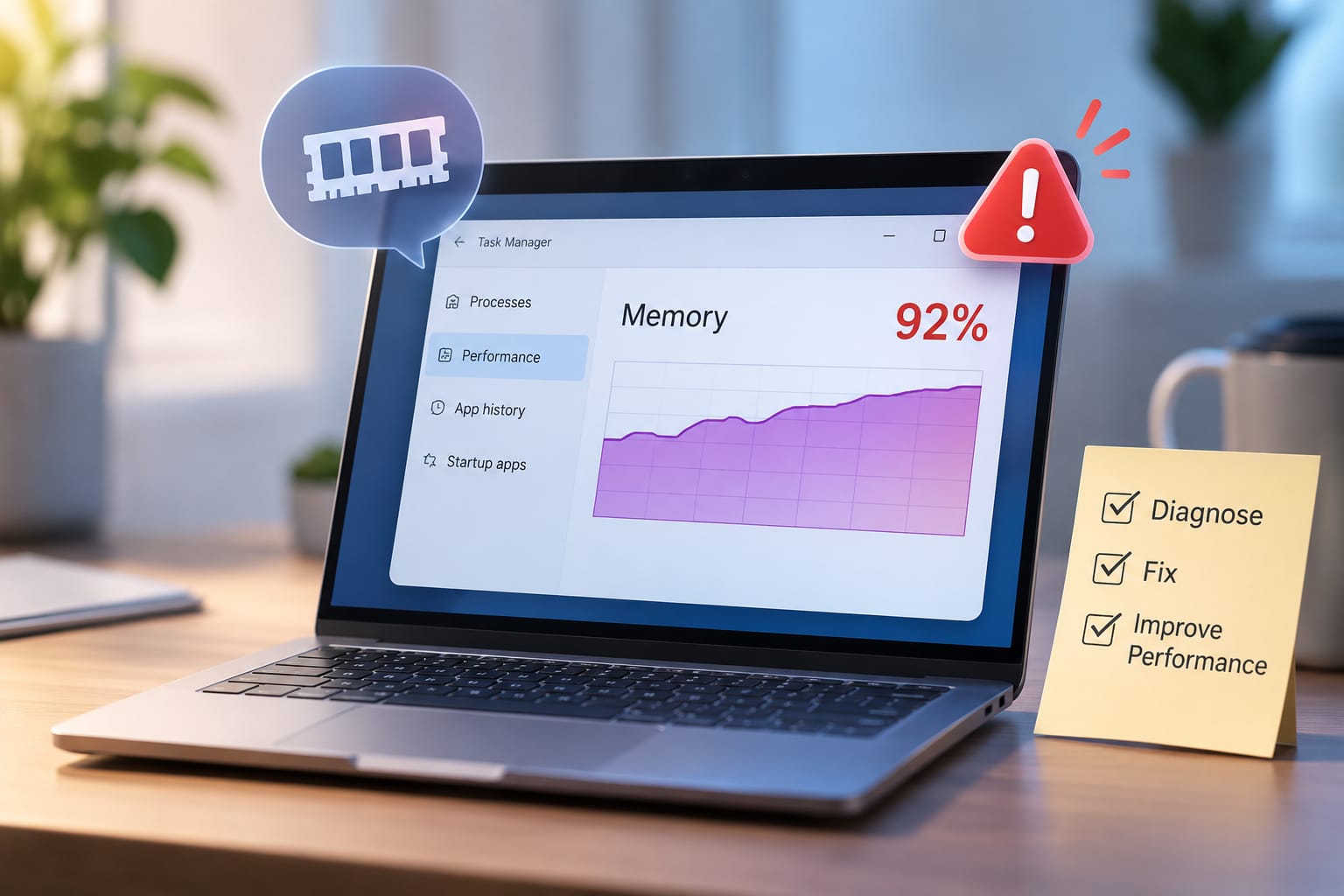
Sometimes, Task Manager shows high RAM consumption even when you aren't actively using any applications.
This may happen because of background programs, startup applications, software conflicts, or unwanted processes running without your knowledge.
What Causes High Memory Usage in Laptops?
Before trying to fix the problem, it's important to understand what's consuming your laptop's memory.
1. Too Many Applications Running at Once
One of the most common reasons for high RAM usage is running too many applications simultaneously.
For example, you might have Chrome open with several tabs, a video meeting running in the background, music playing, and multiple documents open. All these activities require memory.
How to fix it: Close applications that you aren't currently using. If you regularly work with multiple programs, check whether your laptop has enough RAM to handle your workload.
2. Too Many Browser Tabs and Extensions
Every browser tab uses some amount of memory. Websites containing videos, animations, advertisements, and interactive features can consume even more.
Browser extensions also run background processes, which can increase RAM consumption.
How to fix it: Close tabs you no longer need, remove extensions you rarely use, and check your browser's built-in task manager to identify memory-heavy tabs.
3. Background Applications and Startup Programs
Have you noticed that your laptop sometimes feels slow immediately after starting Windows? This can happen because several applications launch automatically when you switch on your device.
Messaging apps, cloud storage services, update utilities, and other programs may continue running in the background.
How to fix it: Open Task Manager and navigate to Startup apps. Review the list and disable programs that you don't need to launch automatically. Avoid disabling essential Windows or security services.
4. Insufficient RAM
Sometimes, the problem isn't caused by unnecessary applications. Your laptop simply may not have enough physical memory for the tasks you're performing.
For example, a laptop with 4GB RAM may struggle with modern browsers, office applications, and multitasking.
How to fix it: Consider upgrading your laptop's RAM if the model supports it. Before purchasing additional memory, check the supported RAM type, maximum capacity, and available slots.
5. Malware and Unwanted Background Processes
Not every program running on your laptop is necessarily something you installed or recognise. Malware can operate silently in the background and consume system resources.
Apart from high memory usage, you may also notice unexpected pop-ups, slow performance, unusual network activity, or applications crashing frequently.
How to fix it: Run a full scan using Windows Security or another trusted antivirus program. Remove any threats detected and investigate suspicious applications.
6. Memory Leaks in Applications
A memory leak happens when an application continues using RAM that it should have released after completing a task.
Over time, memory consumption may keep increasing even when you're not doing anything different. This can eventually slow down your entire system.
How to fix it: Update the affected application and install available software patches. Restarting the application may temporarily resolve the issue. If the problem continues, investigate whether the software has a known memory leak.
How to Fix High Memory Usage on Windows Laptops
If your laptop is running slowly because of excessive RAM consumption, try these troubleshooting methods before considering a hardware upgrade.
Step 1: Check Memory Usage in Task Manager
Task Manager is the easiest place to start when investigating high memory usage.
Follow these steps:
Press Ctrl + Shift + Esc to open Task Manager.
Select the Processes tab.
Click the Memory column to arrange applications by memory consumption.
Check which programs are using the most RAM.
Close applications that you don't need.
This helps you identify whether a particular application or background process is consuming too much memory.
Be careful when closing unfamiliar processes because some are required for Windows to function properly.
Step 2: Close Unnecessary Applications and Browser Tabs
You don't always need a complicated solution to reduce RAM usage. Sometimes, simply closing applications you aren't using can make a noticeable difference.
Close unused browser tabs, exit unnecessary programs, and remove browser extensions that you no longer need.
If you regularly work with multiple applications, try to keep only the essential ones running.
Step 3: Disable Unnecessary Startup Applications
Some programs automatically start whenever you turn on your laptop. Although this can be convenient, too many startup applications may consume memory unnecessarily.
To manage them:
Open Task Manager.
Click Startup apps.
Review the applications listed.
Identify programs that don't need to start automatically.
Right-click and select Disable.
This can reduce background memory consumption and help your laptop start more efficiently.
Step 4: Check Virtual Memory Settings
Windows uses virtual memory when physical RAM becomes insufficient for running tasks.
You can review its settings by following these steps:
Open Windows Search.
Search for View advanced system settings.
Select the Advanced tab.
Under Performance, click Settings.
Open the Advanced tab again.
Under Virtual memory, select Change.
For most users, allowing Windows to automatically manage the paging file is a suitable option.
Keep in mind that increasing virtual memory does not provide the same performance as adding physical RAM.
Step 5: Scan Your Laptop for Malware
If your laptop continues using unusually high memory even when very few applications are open, check for malware or unwanted software.
Open Windows Security, go to Virus & threat protection, select Scan options, and run a Full scan.
If any threats are detected, follow the recommended steps to remove them.
Step 6: Update Windows and Installed Applications
Outdated software can sometimes create compatibility issues or cause applications to consume more memory than expected.
Check Windows Update for available updates and install compatible updates for your frequently used applications.
If the problem started immediately after installing a particular application or update, investigate whether that change is responsible.
When Should You Upgrade Your Laptop RAM?
If your laptop regularly runs out of available memory despite closing unnecessary applications, a RAM upgrade may be worth considering.
For general reference:
4GB RAM: Often limited for modern multitasking.
8GB RAM: Suitable for many everyday browsing and office tasks.
16GB RAM: Offers more flexibility for multitasking and demanding applications.
32GB RAM or more: Useful for certain professional workloads, advanced editing, virtual machines, and other memory-intensive tasks.
These are general guidelines, not fixed requirements. Your actual needs depend on the applications you use.
Before upgrading, check whether your laptop supports additional memory, the maximum supported capacity, and whether the existing RAM is soldered or replaceable.
When Do You Need Professional Laptop Repair?
Most high memory usage problems can be investigated through basic software troubleshooting. However, if your laptop continues freezing, crashing, or showing memory-related errors, there may be an underlying hardware or software issue.
Consider professional assistance if:
RAM usage remains unusually high even when applications are closed.
Your laptop frequently freezes or restarts unexpectedly.
Memory diagnostic tests report errors.
Windows does not detect the installed RAM correctly.
You need help choosing compatible RAM for an upgrade.
Performance problems continue despite trying common troubleshooting methods.
A proper diagnosis can help determine whether the issue is related to faulty memory modules, software conflicts, or insufficient RAM.
Conclusion
High memory usage can make everyday laptop tasks frustrating, especially when applications freeze, browser tabs stop responding, or the system becomes slow during multitasking.
The first step is to identify what's consuming your RAM. Check Task Manager, close unnecessary applications, manage startup programs, and scan for malware. If your laptop still struggles with everyday tasks, consider whether a physical RAM upgrade is necessary.
Addressing the actual cause can improve laptop performance and help you avoid unnecessary component replacements.
If you need professional assistance with laptop performance issues, RAM upgrades, or other hardware and software problems, visit NSS Laptop Service Center to explore available laptop repair services.