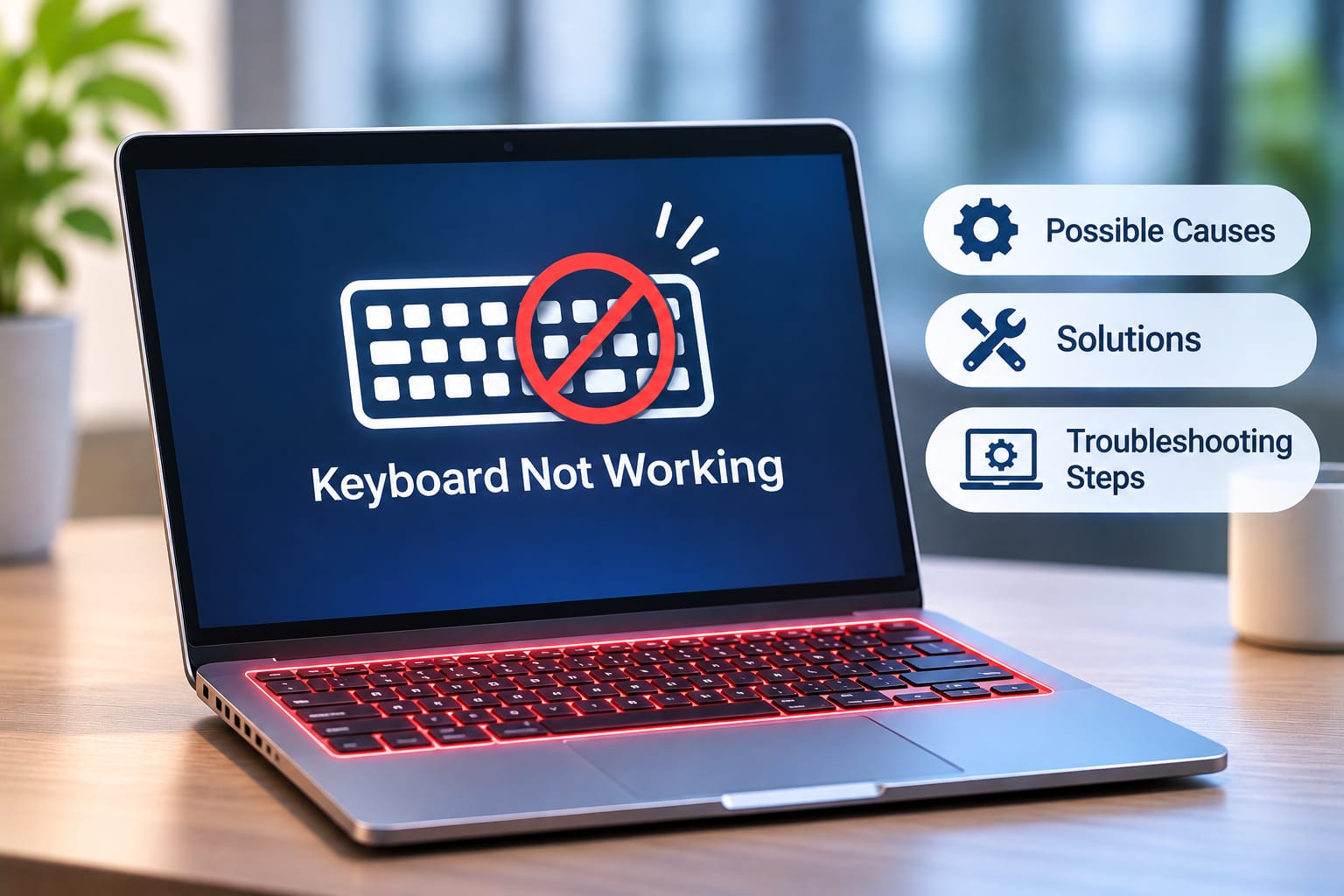
A laptop keyboard is essential for everyday tasks, whether you use your device for office work, studies, browsing, or communication. But what happens when you press a key and nothing appears on the screen? Sometimes only a few keys stop working, while in other cases the entire keyboard becomes unresponsive.
The laptop keyboard not working issue can occur because of outdated drivers, incorrect keyboard settings, dust accumulation, liquid spills, damaged internal connections, or hardware failure. Before deciding to replace the keyboard, it is worth checking whether the problem is software-related or caused by a physical fault.
This guide explains the common reasons a laptop keyboard stops responding and the practical steps you can follow to troubleshoot it.
Common Reasons Why a Laptop Keyboard Is Not Working
1. Outdated or Corrupted Keyboard Drivers
Keyboard drivers help Windows communicate with the laptop's keyboard. If a driver becomes corrupted, outdated, or incompatible after a system update, some or all keys may stop responding.
Possible signs:
The keyboard suddenly stops working after a Windows update.
Certain keys respond inconsistently.
The keyboard works intermittently after restarting.
What you can do:
Right-click the Start button and open Device Manager.
Expand the Keyboards section.
Right-click the installed keyboard device.
Select Update driver.
Follow the instructions and restart your laptop.
If the issue started after a driver update, check whether the Roll Back Driver option is available.
2. Dust, Dirt, or Debris Under the Keys
Dust, food particles, and other debris can collect beneath laptop keys over time. This may prevent individual keys from registering properly.
Possible signs:
Some keys do not respond when pressed.
Keys feel sticky or difficult to press.
Certain keys work only when pressed harder.
What you can do:
Turn off the laptop before cleaning.
Use a soft, dry microfiber cloth.
Use compressed air carefully to remove loose dust.
Avoid pouring liquids or household cleaning products directly onto the keyboard.
Do not forcefully remove laptop keycaps. Many laptop keyboards use delicate clips that can break easily.
3. Incorrect Keyboard Settings in Windows
Windows includes accessibility features that can change how the keyboard responds. For example, Filter Keys can ignore brief or repeated keystrokes, making the keyboard appear unresponsive.
What you can do:
Open Windows Settings.
Go to Accessibility.
Select Keyboard.
Check whether Filter Keys or other accessibility options are enabled.
Turn off settings you do not need and test the keyboard again.
Also check the keyboard language and input layout if the keys are producing unexpected characters rather than failing completely.
4. Liquid Spillage or Physical Damage
Accidentally spilling water, tea, coffee, or another liquid on a laptop can damage the keyboard circuitry. Physical pressure or accidental drops may also affect the keyboard or its internal connection.
Possible signs:
Multiple keys stop working after a spill.
Keys become sticky or register automatically.
The keyboard behaves unpredictably.
The laptop has visible physical damage.
What you should do:
Turn off the laptop immediately.
Disconnect the charger and other accessories.
Do not continue pressing keys to test them.
Avoid using a hair dryer or applying direct heat.
Arrange a professional inspection before powering it on again.
Liquid damage can spread beyond the keyboard and affect the motherboard, so early inspection is important.
5. Loose or Damaged Keyboard Ribbon Cable
A laptop keyboard connects to the motherboard through a thin ribbon cable. If the connection becomes loose or the cable is damaged, the keyboard may stop responding.
This can happen after a laptop has been opened for repair, experienced physical impact, or developed internal connection problems.
What you can do:
A technician should inspect the keyboard connector and ribbon cable. Avoid opening the laptop and reconnecting internal components unless you have the right tools and experience.
6. Windows System or Software Problems
Sometimes the keyboard hardware is working correctly, but Windows is not processing input properly. Corrupted system files, software conflicts, or background processes can affect keyboard functionality.
What you can do:
Restart the laptop.
Close recently installed applications that may interfere with keyboard input.
Install pending Windows updates.
Run the System File Checker by opening Command Prompt as administrator and entering
sfc /scannow.Restart the laptop after the scan completes.
If the keyboard works outside Windows but not after startup, a software or driver issue may be responsible.
How to Fix a Laptop Keyboard That Is Not Responding
Try these basic troubleshooting steps before considering hardware replacement.
Step 1: Restart Your Laptop
A temporary Windows glitch can sometimes prevent keyboard input from working.
Restart the laptop using the mouse or on-screen power options. Once Windows loads again, test multiple keys, including letters, numbers, and function keys.
Step 2: Check Whether the Entire Keyboard or Only Some Keys Are Affected
Open a text editor and test different sections of the keyboard.
If only a few keys fail, there may be physical damage or debris beneath those keys.
If the entire keyboard is unresponsive, check drivers, Windows settings, and the internal connection.
If keys type incorrect characters, check the input language and keyboard layout.
This simple check helps narrow down the possible cause.
Step 3: Use the On-Screen Keyboard
If the physical keyboard is not working, Windows provides an On-Screen Keyboard that you can operate using your mouse.
To open it:
Go to Settings.
Select Accessibility.
Open Keyboard.
Enable On-Screen Keyboard.
This can help you continue using your laptop while troubleshooting the physical keyboard.
Step 4: Test an External USB Keyboard
Connect a USB keyboard to your laptop.
If the external keyboard works normally, Windows is likely accepting keyboard input, and the built-in keyboard or its connection may be faulty. However, this does not confirm which internal component is damaged.
If the external keyboard also fails, investigate Windows settings, drivers, or broader system issues.
Step 5: Check the Keyboard in BIOS or UEFI
You can also check whether the built-in keyboard responds before Windows starts.
Restart the laptop.
Press the manufacturer's BIOS or UEFI key during startup. Common keys include F2, F10, F12, or Delete, depending on the model.
Try navigating the BIOS menu using the keyboard.
If the keyboard works in BIOS but not in Windows, a software or driver issue becomes more likely. If it does not respond, a hardware problem may be involved.
Do not change BIOS settings unnecessarily while performing this test.
Laptop Keyboard Replacement for Different Brands
If troubleshooting does not restore keyboard functionality, the keyboard or its internal connection may need professional inspection. Replacement requirements vary depending on the laptop model and keyboard design.
For brand-specific keyboard replacement information, you can refer to:
The replacement cost can depend on the laptop model, keyboard layout, backlit functionality, part availability, and whether the keyboard is integrated into the top cover.
When Should You Consider Professional Laptop Keyboard Repair?
Basic troubleshooting can resolve many software-related keyboard issues. However, professional inspection is recommended if:
The entire keyboard remains unresponsive.
Several keys stopped working after liquid spillage.
Keys are physically damaged or stuck.
The keyboard works intermittently.
The keyboard does not respond in BIOS or UEFI.
An external keyboard works, but the built-in keyboard does not.
A technician can inspect the keyboard, ribbon cable, connector, and related motherboard circuitry to identify the actual fault before recommending replacement.
Frequently Asked Questions
1. Why is my laptop keyboard suddenly not working?
A laptop keyboard may suddenly stop working because of a driver issue, Windows update, incorrect accessibility settings, liquid damage, or a loose internal connection. Restarting the laptop and checking the keyboard driver are useful first steps.
2. How do I unlock my laptop keyboard?
Some laptops have keyboard shortcuts or function-key combinations that control specific keyboard features. Also check Windows accessibility settings, especially Filter Keys. If the keyboard remains unresponsive, the issue may not be a lock setting.
3. Why are only some keys on my laptop keyboard not working?
Individual keys may stop responding because of dust, worn-out key mechanisms, liquid damage, or a damaged keyboard circuit. Cleaning may help with loose debris, but damaged keys may require repair or replacement.
4. Can I use my laptop if the built-in keyboard is not working?
Yes. You can connect an external USB keyboard or use the Windows On-Screen Keyboard. These are temporary alternatives while you diagnose the built-in keyboard issue.
5. Does a laptop keyboard need to be replaced if it stops working?
Not always. Driver problems, incorrect settings, and temporary software glitches can often be fixed without replacing the keyboard. Replacement may be necessary if the keyboard has physical or electrical damage.
Conclusion
A laptop keyboard that stops responding can be caused by anything from incorrect Windows settings to physical damage or a faulty internal connection. Start by restarting your laptop, checking keyboard settings, updating drivers, and testing an external keyboard. These steps can help identify whether the problem is software-related or hardware-related.
If the keyboard remains unresponsive, professional diagnosis can help prevent unnecessary part replacement. NSS Laptop Service Center can be considered for laptop keyboard inspection and repair, with the appropriate solution depending on the laptop brand, model, and condition.