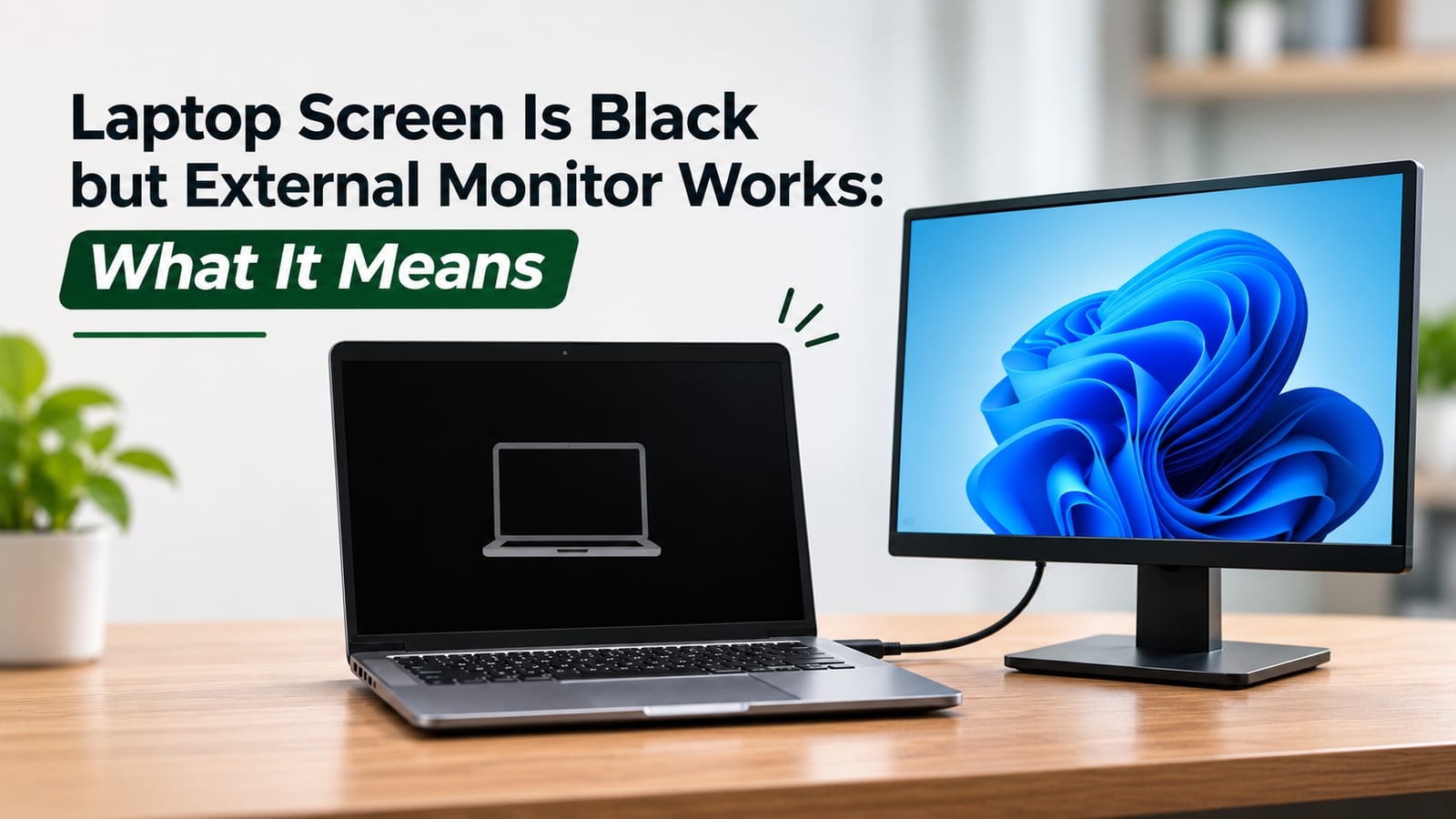
You turn on your laptop, hear the startup sound, and notice that the keyboard lights are working, but the laptop screen remains completely black. When you connect an external monitor or television, everything appears normally.
This situation can be confusing because the laptop is clearly running, yet its built-in display shows nothing.
If your laptop screen is black but the external monitor works, the problem is often related to the internal display system rather than a complete laptop failure.
Possible causes include a damaged LCD or LED panel, faulty display cable, backlight failure, incorrect display settings, or a problem with the internal display connection.
The good news is that an external monitor displaying a normal picture provides useful diagnostic information. It suggests that the laptop can boot and generate a video signal, although it does not rule out every graphics-related fault.
This guide explains what the symptoms mean, which checks you can safely perform, and when professional display repair may be necessary.
Why Does My Laptop Screen Stay Black While an External Monitor Works?
A laptop uses several components to display an image on its built-in screen.
These include the graphics system, internal display cable, LCD or LED panel, backlight circuitry, and display connectors.
When you connect an external monitor, the laptop sends a video signal through a separate output such as HDMI, DisplayPort, or USB-C.
Because the internal and external display paths are not identical, one can work while the other fails.
Common causes include:
Faulty laptop screen panel
Loose or damaged display cable
Failed screen backlight
Incorrect display output settings
Display driver problems
Damaged screen connector
Internal display power circuit faults
Physical damage near the laptop hinge
The next step is determining whether the issue is caused by software settings or physical hardware damage.
1. Check Your Laptop's Display Settings
Before assuming that the screen is damaged, check whether the laptop is configured to display the image only on an external monitor.
On Windows laptops, display output can be changed using the Windows + P keyboard shortcut.
This opens several display options:
PC screen only
Duplicate
Extend
Second screen only
If the laptop is set to Second screen only, the built-in display may remain blank while the external monitor works.
Try selecting Duplicate or PC screen only.
If the internal display begins working, the issue may have been caused by the display configuration rather than hardware failure.
Some laptops also have dedicated function keys for switching between displays.
The exact key combination varies by manufacturer.
2. Restart the Laptop With the External Monitor Disconnected
Temporary software or display detection problems can sometimes cause the laptop to send its image to the wrong output.
Shut down the laptop normally using the external monitor.
Disconnect the external display cable and other unnecessary accessories.
Then restart the laptop.
Observe whether the manufacturer logo appears on the built-in screen.
If the laptop screen displays the startup logo but turns black after Windows loads, a display driver or operating system configuration issue becomes more likely.
If the internal screen remains black throughout startup, the problem may involve the panel, display cable, backlight, or another hardware component.
This test does not provide a definitive diagnosis, but it helps narrow down the possibilities.
3. Perform a Flashlight Test for Backlight Failure
A laptop screen may appear completely black even when it is producing an image.
This can happen when the display backlight stops working.
The backlight illuminates the screen so that images remain visible.
Without proper illumination, the picture may become extremely difficult to see.
How to Perform the Test
Turn on the laptop and allow it to start normally.
In a dimly lit room, shine a flashlight at the screen from an angle.
Look carefully for a faint image, cursor, or desktop.
If you can see a very dim picture, the screen may be receiving a video signal but failing to illuminate it properly.
Possible causes include a defective backlight, panel electronics, or internal display power circuitry.
Avoid opening the screen assembly yourself, as display panels and internal cables are delicate.
4. Check Whether the Laptop Screen Is Physically Damaged
Physical screen damage does not always appear as obvious cracks.
A laptop display may fail after being dropped, compressed inside a bag, or subjected to pressure while closed.
Sometimes the external glass or surface appears normal even though the internal LCD panel is damaged.
Warning signs include:
Black patches or dark areas
Coloured vertical or horizontal lines
Flickering before the screen turns black
White or distorted display output
Partial images
Visible cracks or pressure marks
If the laptop recently experienced physical impact, panel damage becomes a stronger possibility.
A damaged display panel generally requires replacement rather than software troubleshooting.
However, the exact component should be identified before purchasing a replacement screen.
5. Could a Loose Display Cable Cause a Black Screen?
Yes. A loose or damaged display cable is another possible reason the internal screen stops working while an external monitor continues to display normally.
The display cable connects the motherboard to the laptop's built-in screen.
In many laptops, this cable passes through or near the hinge assembly.
Repeated opening and closing can place mechanical stress on the cable, particularly when the hinge is damaged or unusually tight.
Common Symptoms of Display Cable Problems
Screen flickers intermittently
Display turns black at certain lid positions
Image appears and disappears
Screen shows distorted colours
External monitor works normally
If the screen behaviour changes when the lid moves during ordinary use, the display cable or its connections may be involved.
Do not repeatedly bend the screen to force the picture to return.
This could damage the cable, panel, or hinge assembly further.
6. Check the Display Drivers
Graphics drivers help the operating system communicate with display hardware.
A corrupted, incompatible, or outdated driver can sometimes cause display problems.
If the external monitor works, you may be able to troubleshoot the driver through Windows.
Open Device Manager and locate Display adapters.
Check whether the graphics device reports an error.
If the problem began after a recent driver update, consider rolling back to the previous driver version.
You can also install an appropriate driver from the laptop manufacturer's official support website.
Avoid downloading drivers from unknown third-party websites.
If the internal display works during startup but fails after Windows loads, software troubleshooting is particularly relevant.
However, if the screen never displays anything, a hardware fault remains a possibility.
7. Check Whether Windows Detects the Internal Display
Connect the external monitor and open Windows display settings.
Navigate to System, then Display.
Check whether Windows identifies the built-in screen.
If both displays appear, review their configuration and ensure the internal display is enabled.
If the internal screen is not detected, the issue may involve the display connection, panel electronics, or driver communication.
However, detection results alone cannot identify the defective component.
A professional technician may need to test the internal display cable and panel separately.
8. Can a Laptop Hinge Problem Affect the Screen?
Laptop hinges support the display assembly and allow the screen to open and close.
When a hinge becomes loose, stiff, or physically damaged, it can place additional pressure on nearby components.
This may affect the display cable, connectors, or screen mounting points.
Some users notice that their laptop screen flickers before eventually becoming black.
Others experience display problems after the hinge begins making cracking or clicking sounds.
If the laptop hinge is damaged, avoid forcing the lid open or closed.
Repairing the display without addressing a damaged hinge could leave the replacement components vulnerable to further mechanical stress.
9. Is the Laptop Motherboard Responsible?
A working external monitor generally suggests that the laptop can boot and produce a usable video signal.
However, this does not completely eliminate motherboard-related faults.
The internal display may rely on dedicated connectors, power circuits, and signal pathways that differ from the external video output.
A damaged internal display connector or related motherboard circuitry could prevent the built-in screen from working.
These problems are less straightforward to diagnose without technical equipment.
A technician may need to test the display cable, panel, and relevant electrical connections before determining whether motherboard repair is necessary.
Replacing the motherboard should not be the first assumption when the external monitor works normally.
10. When Does a Laptop Screen Need Replacement?
A laptop screen may require replacement when the display panel itself is defective or physically damaged.
Common situations include cracked LCD panels, failed panel electronics, severe image distortion, or backlight faults integrated into the screen assembly.
However, replacing the screen will not resolve every black-screen problem.
If the actual cause is a damaged cable or motherboard connector, installing a new panel may leave the original issue unresolved.
Before approving replacement, understanding the possible laptop screen repair cost can help you compare the available repair options.
The technician should confirm which component has failed and whether a replacement panel is necessary.
11. How Much Does It Cost to Fix a Laptop Black Screen?
The repair cost depends on the underlying cause.
A software configuration issue may require only troubleshooting.
A damaged display cable may involve cable replacement and labour.
A defective LCD or LED panel generally requires a compatible replacement screen.
The cost can vary based on:
Laptop brand and model
Screen size and resolution
Refresh rate
Touchscreen functionality
Panel technology
Replacement part availability
Labour and repair complexity
For example, high-refresh-rate gaming laptop displays and certain premium touchscreen assemblies may cost more than standard laptop panels.
Owners of compatible Dell models can review laptop display replacement options when evaluating a screen replacement.
Always confirm the exact screen specification before purchasing a replacement component.
12. Should You Keep Using the Laptop With an External Monitor?
If the laptop works normally with an external monitor, you may be able to continue using it temporarily.
However, this depends on the cause of the internal display failure.
If the issue involves a damaged screen panel, external monitor use may provide a practical temporary solution.
If the laptop has a damaged hinge, exposed display wiring, or signs of electrical overheating, continued use may create additional risks.
Avoid forcing the laptop lid or repeatedly adjusting damaged cables.
Back up important files while the device remains operational.
A working external monitor provides an opportunity to protect your data before further hardware troubleshooting.
13. When Should You Seek Professional Display Diagnosis?
Professional inspection is recommended when basic display settings and driver checks do not resolve the problem.
You should also seek assistance if the laptop screen has physical damage, flickers when the lid moves, or remains black even during startup.
A technician can examine the display panel, internal cable, backlight, and related connectors.
The goal should be to identify the defective component rather than automatically replacing the entire display assembly.
For Lenovo laptop owners experiencing similar symptoms, information about laptop screen repair services may help when considering professional diagnosis and repair.
How to Prevent Future Laptop Display Problems
Not every display failure can be prevented, but careful handling can reduce the risk of physical damage.
Open and close the laptop gently, preferably from the centre of the lid.
Avoid placing heavy objects on the laptop or applying pressure to the screen.
Use a protective laptop bag during travel.
Do not ignore loose or unusually stiff hinges.
Keep liquids away from the display and keyboard.
Install graphics drivers from official manufacturer sources and avoid unnecessary driver changes when the laptop is functioning normally.
Regular maintenance and careful handling can help protect the display assembly over time.
Final Thoughts
If your laptop screen is black but the external monitor works, the problem is often isolated to the internal display system.
Possible causes include incorrect display settings, driver problems, a damaged screen panel, backlight failure, or a faulty display cable.
Start with simple checks such as changing the display mode, restarting the laptop, checking Windows display settings, and observing whether the screen shows an image during startup.
If the internal screen remains black, avoid replacing components without confirming the actual fault.
A proper display diagnosis can determine whether the laptop needs a cable repair, screen replacement, or further hardware investigation.