A laptop that once lasted six hours on a single charge may struggle to run for two hours after several years of use. You might also notice sudden battery percentage drops, longer charging times or unexpected shutdowns when the charger is disconnected.
Lithium-ion batteries gradually lose their ability to store energy through regular use, chemical ageing and exposure to heat. However, increased power consumption, charging problems and incorrect battery readings can also reduce apparent battery performance.
Checking laptop battery health helps identify whether the battery has deteriorated or another issue is responsible for poor backup.
What Is Laptop Battery Health?
Laptop battery health describes how much energy a battery can currently store compared with its original designed capacity.
Two measurements are particularly important:
Design Capacity: The amount of energy the battery was originally designed to store.
Full Charge Capacity: The estimated maximum amount of energy the battery can currently hold.
A battery originally designed to store 50,000 mWh might retain only 35,000 mWh after several years of use. Its estimated battery health would be 70%.
Even when Windows displays 100% charge, the battery may hold considerably less energy than it did when new.
How to Check Laptop Battery Health in Windows 10 and Windows 11
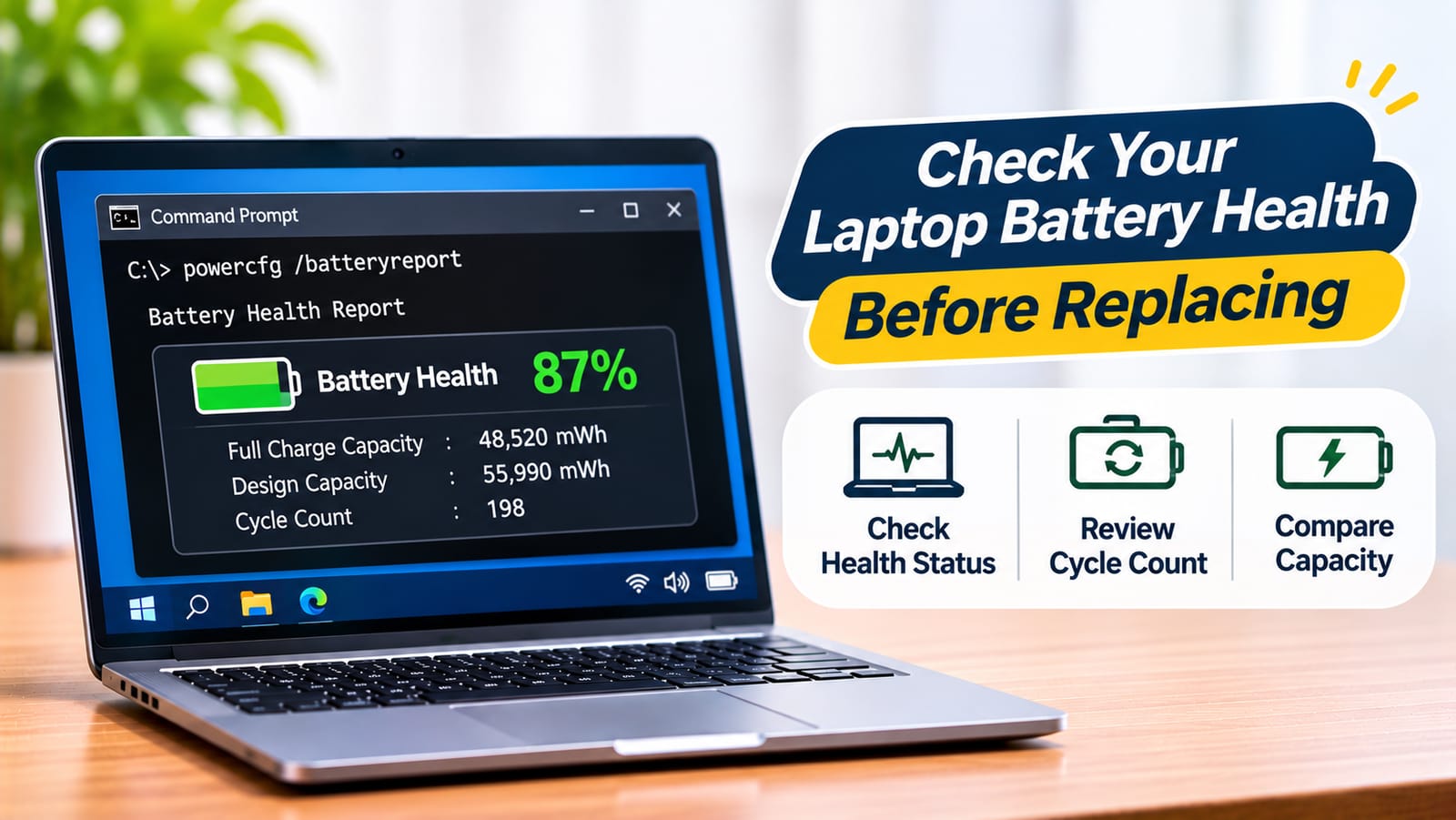
Windows includes a built-in battery reporting tool that provides information about battery capacity, usage patterns and estimated runtime.
You can generate a battery health report without installing third-party software.
Follow these steps:
Open the Windows Start menu.
Search for Command Prompt.
Select Run as administrator.
Enter the following command:
powercfg /batteryreport
Press Enter.
Copy the file location displayed in Command Prompt.
Open the generated HTML file in your web browser.
The report contains information about installed batteries, recent usage, battery capacity history and estimated battery life.
How to Calculate Your Laptop Battery Health
Locate the Installed Batteries section in the Windows battery report.
Find the Design Capacity and Full Charge Capacity values.
Use this formula:
Battery Health (%) = (Full Charge Capacity ÷ Design Capacity) × 100
For example, consider a laptop with the following battery specifications:
Design Capacity: 48,000 mWh
Full Charge Capacity: 31,200 mWh
Battery Health = (31,200 ÷ 48,000) × 100
The estimated battery health is 65%, meaning the battery has lost approximately 35% of its original energy storage capacity.
Actual runtime will also depend on processor usage, display brightness, graphics activity and background applications.
What Battery Health Percentage Is Considered Good?
Battery health gradually declines throughout a laptop's operating life.
The following ranges provide a general reference:
90–100%: Excellent battery condition.
80–89%: Moderate wear with relatively good capacity.
60–79%: Noticeable degradation and reduced battery backup.
Below 60%: Significant capacity loss that may justify replacement.
These percentages are practical guidelines, not universal manufacturer replacement thresholds.
A battery with 70% health may remain suitable for someone working near a power outlet. Someone who frequently travels or works remotely may require replacement sooner.
Check the Battery Cycle Count
A battery charge cycle represents cumulative energy usage equivalent to 100% of its capacity.
For example, using 50% of the battery today and another 50% tomorrow generally represents approximately one complete charge cycle.
Many laptop batteries are designed for several hundred charge cycles, although their expected lifespan varies by manufacturer, battery chemistry and operating conditions.
The Windows battery report may display the cycle count if the battery firmware provides this information.
A high cycle count combined with reduced full charge capacity indicates battery ageing. Some batteries deteriorate faster because of prolonged heat exposure or calendar ageing, even with relatively few charging cycles.
Review Battery Capacity History
The Battery Capacity History section records changes in estimated full charge capacity over time.
Gradual capacity reduction is expected. A substantial decline over a short period deserves closer investigation.
Possible causes include excessive operating temperatures, battery cell deterioration, inaccurate battery readings and charging circuit problems.
HP laptop owners experiencing significant capacity loss can review the estimated HP laptop battery replacement cost when evaluating whether replacement makes financial sense.
Check several historical readings before making a decision. Battery capacity estimates can fluctuate slightly depending on operating conditions and firmware calculations.
Check Battery Health Using Manufacturer Diagnostic Tools
Laptop manufacturers provide diagnostic utilities for supported models.
Common examples include:
HP Support Assistant and HP PC Hardware Diagnostics
Dell SupportAssist
Lenovo Vantage
MyASUS
Acer Care Center or AcerSense on supported models
These applications can provide battery condition information, charging settings and hardware diagnostic results.
Some laptops also include battery diagnostics within their BIOS or UEFI firmware.
Manufacturer tools are particularly useful when Windows reports inconsistent battery percentages or when the laptop experiences unexpected shutdowns despite showing sufficient remaining charge.
Why Does a Laptop Battery Drain Quickly Despite Good Health?
A battery with relatively high remaining capacity can still provide poor runtime when the laptop consumes excessive power.
Common reasons include high screen brightness, resource-intensive applications, dedicated graphics activity, background synchronization and excessive processor usage.
Open Task Manager and examine CPU, GPU and memory consumption during normal use.
Windows battery settings also provide application-level battery usage information.
Reduce unnecessary background activity, adjust display brightness and select an appropriate power mode. Compare battery runtime under similar workloads before concluding that the battery needs replacement.
Identify Charging Problems Before Replacing the Battery
A laptop that fails to charge correctly may have a defective adapter, damaged charging port or motherboard charging circuit fault.
Common symptoms include:
Battery percentage remaining unchanged while plugged in.
Intermittent charging when the adapter moves.
Charging stopping unexpectedly.
Laptop failing to recognize the power adapter.
Battery discharging during demanding tasks despite being plugged in.
Some laptops intentionally stop charging at 60% or 80% because battery conservation settings are enabled. Check these settings before assuming a hardware fault.
For persistent charging or battery detection problems, professional Acer laptop battery repair can help identify whether the battery, adapter or charging circuit requires attention.
Replacing a healthy battery will not resolve a defective charging circuit.
Can Battery Calibration Improve Battery Health?
Battery calibration helps the battery management system estimate the remaining charge more accurately.
It can be useful when the displayed battery percentage changes suddenly or the laptop shuts down despite showing remaining charge.
Calibration cannot restore lost chemical capacity or reverse battery degradation.
Use the manufacturer's recommended calibration procedure when available. Avoid repeatedly draining lithium-ion batteries to zero, as frequent deep discharge can accelerate wear.
Warning Signs That Your Laptop Battery Needs Replacement
Battery replacement becomes worth considering when reduced capacity regularly interrupts normal laptop usage.
Watch for these symptoms:
Significantly reduced battery backup.
Unexpected shutdowns after disconnecting the charger.
Frequent and sudden battery percentage drops.
Persistent battery failure warnings.
Inability to retain sufficient charge.
Battery swelling requires immediate attention. A raised trackpad, separating laptop casing or distorted keyboard surface can indicate an expanding battery.
Stop using and charging the laptop if swelling is suspected. Do not press, puncture or attempt to flatten the battery.
How to Extend Laptop Battery Lifespan
Heat management and sensible charging habits can reduce unnecessary battery wear.
Keep cooling vents unobstructed and avoid operating the laptop on soft surfaces that restrict airflow.
Enable battery conservation or charge limit settings if your laptop spends most of its time connected to a charger.
Avoid prolonged exposure to high temperatures and frequent complete battery discharge.
Users experiencing abnormal charging behaviour can consider Lenovo laptop battery servicing to investigate battery condition and charging-related hardware problems before purchasing replacement components.
Final Thoughts
Generate a Windows battery report and compare the full charge capacity with the original design capacity. Review capacity history, cycle count, charging behaviour and actual runtime.
Reduced battery health can justify replacement when it affects everyday usability. Charging failures, unexpected shutdowns and inconsistent battery readings require further diagnosis.
Checking these factors before purchasing a replacement battery helps avoid unnecessary expenses and identifies the actual cause of poor laptop battery performance.