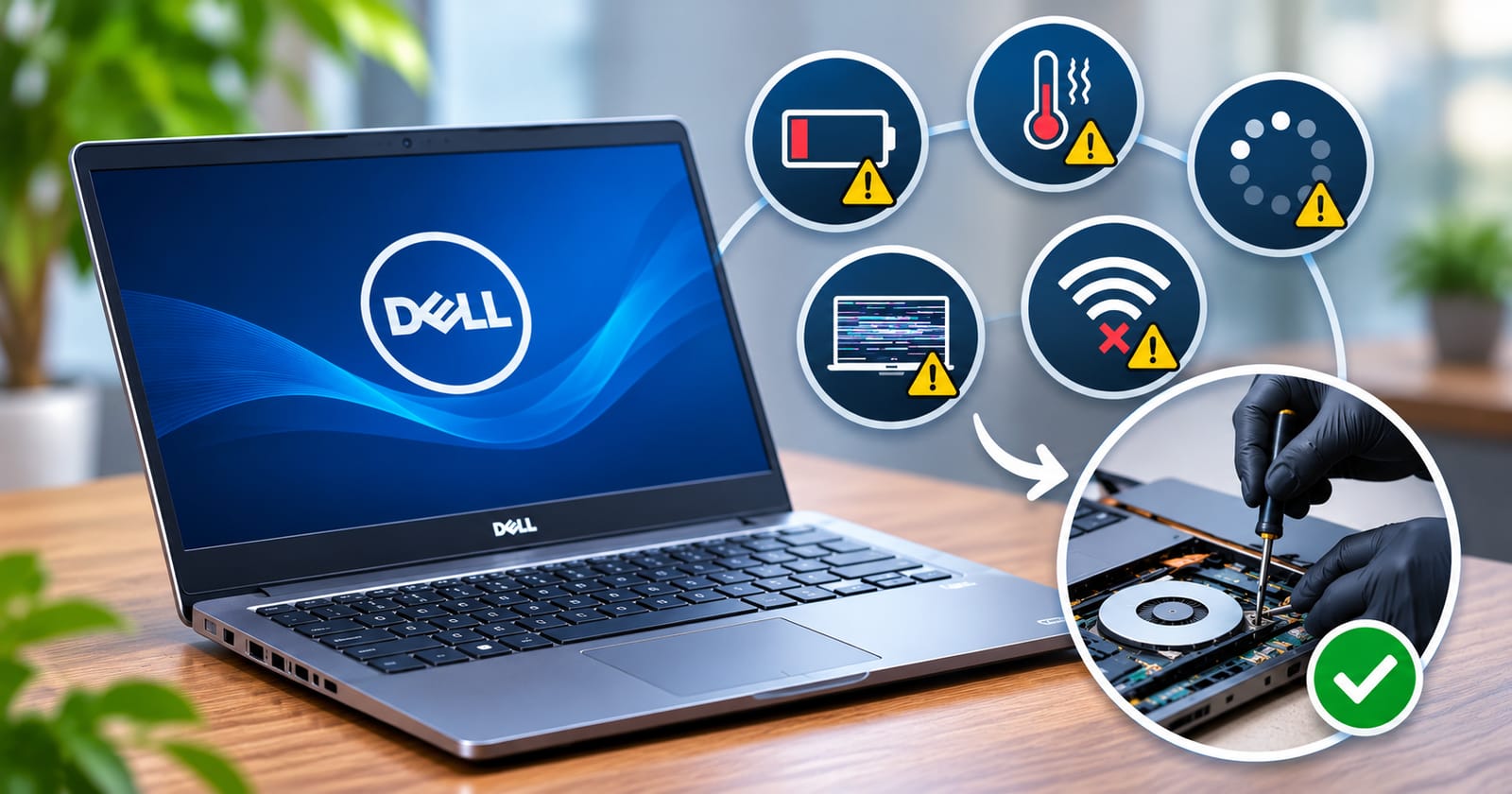
Dell laptops are widely used for professional work, education, business operations and everyday computing. From the Inspiron and Vostro series to Latitude, XPS and Alienware models, Dell offers devices for different users and performance requirements. However, like any electronic device, Dell laptops can develop technical problems over time.
Some issues may be related to software settings, outdated drivers or regular wear and tear. Others can indicate hardware faults that require technical inspection. Identifying the symptoms early can help users avoid further complications and determine when professional assistance is necessary.
Understanding common Dell laptop problems can help laptop owners recognise warning signs, take appropriate initial steps and make informed repair decisions.
1. Dell Laptop Overheating
Overheating is a common issue that can affect laptop performance and long-term hardware reliability. Users may notice excessive heat around the keyboard, bottom panel or ventilation areas. The cooling fan may also become unusually loud when the laptop is running.
Several factors can contribute to overheating, including:
Dust accumulation around cooling fans and ventilation openings
Blocked air vents that restrict airflow
Dried or deteriorated thermal paste
Heavy applications that place continuous demand on the processor
A malfunctioning cooling fan
Users can initially place the laptop on a hard, flat surface and ensure that ventilation openings are not blocked. However, if the device continues to overheat, shuts down unexpectedly or produces unusual fan noise, a technician should inspect the cooling system.
2. Battery Draining Quickly or Not Charging
Battery-related issues can make a Dell laptop difficult to use without connecting it to a power source. A fully charged battery may lose power quickly, the charging percentage may remain unchanged, or the laptop may shut down unexpectedly.
Possible causes include battery ageing, a damaged charging adapter, a faulty charging port or problems with the laptop's power management system.
Users can check the battery status through Dell's available diagnostic tools and inspect the charging adapter for visible damage. Trying a compatible, functioning power adapter may also help identify whether the issue is related to the charger.
If the battery is swollen, stop using the laptop and seek professional assistance. A swollen battery should not be pressed, punctured or handled without appropriate precautions.
3. Slow Performance and Frequent Freezing
A Dell laptop that once performed smoothly may gradually become slower. Applications can take longer to open, the system may freeze during multitasking, or the laptop may take an unusually long time to start.
Common reasons include:
Too many applications running in the background
Insufficient available storage
Limited RAM for demanding workloads
Malware or unwanted software
An ageing or failing storage drive
Outdated operating system components or drivers
Users can begin by checking available storage, reviewing startup applications and installing relevant software updates. However, repeated freezing, unexpected errors or unusually slow file access may indicate a hardware problem.
A professional diagnosis can help determine whether the issue requires software troubleshooting, a storage upgrade or component replacement.
4. Dell Laptop Screen Problems
Display-related faults can range from minor visual disturbances to complete screen failure. Common symptoms include flickering, horizontal or vertical lines, unusual colours, dim brightness, black screens and cracked displays.
These problems may originate from different components, such as the LCD panel, display cable, graphics hardware or motherboard.
An external monitor can help identify whether the issue is limited to the laptop's built-in display. If the external display works normally while the laptop screen remains blank or distorted, the internal display assembly may require inspection.
Physical damage, persistent flickering or visible lines should not be ignored. Attempting to open the display assembly without the right tools can cause additional damage.
5. Keyboard and Touchpad Not Working Properly
Keyboard and touchpad problems can interrupt everyday tasks, especially when users depend on their laptops for typing, communication and professional work.
Some common symptoms include:
Certain keyboard keys not responding
Repeated or incorrect characters appearing while typing
Touchpad cursor movement becoming inconsistent
Gestures or clicking functions stopping unexpectedly
Keyboard or touchpad working intermittently
Software settings, outdated drivers, liquid spills and physical component damage can all contribute to these issues.
Restarting the laptop and checking keyboard or touchpad settings may resolve minor software-related problems. However, if specific keys remain unresponsive or the touchpad stops working despite troubleshooting, professional inspection may be required.
6. Charging Port and Power Problems
A Dell laptop may fail to power on or charge consistently because of problems with its charging port, adapter or internal power circuitry.
Users may notice that the charging indicator does not turn on, the power connection becomes loose, or the laptop only charges when the adapter is held at a particular angle.
These symptoms can indicate a damaged charging connector or an internal hardware fault. Repeatedly adjusting or forcing the charging cable can make the problem worse.
If the laptop does not respond to a known-compatible charger, or the charging port appears loose or damaged, a technician should inspect the power connection and related components.
7. Wi-Fi and Connectivity Issues
Connectivity problems can affect online meetings, browsing, file transfers and remote work. A Dell laptop may disconnect frequently, fail to detect available wireless networks or experience unstable internet access.
Possible causes include incorrect network settings, outdated wireless drivers, router-related problems or a faulty Wi-Fi card.
Users can restart their router and laptop, check whether other devices connect successfully and update the wireless network driver. If the issue continues across different networks, the laptop's wireless hardware may need to be examined.
8. Unusual Fan Noise and Loud Internal Sounds
A laptop fan normally produces some noise while cooling the processor and other internal components. However, unusually loud, continuous or irregular sounds may indicate a problem.
Dust accumulation, damaged fan blades, worn bearings or excessive processor activity can cause abnormal noise. Clicking or grinding sounds should receive particular attention because they may indicate a mechanical issue.
Users should avoid ignoring unusual sounds, especially when they occur alongside overheating or performance drops. A technician can inspect the cooling assembly and determine whether cleaning or component replacement is required.
When Should You Seek Professional Dell Laptop Repair?
Not every laptop issue requires immediate servicing. Minor software problems can sometimes be resolved through basic troubleshooting. However, certain symptoms suggest that professional inspection is the safer option.
Consider seeking technical assistance when:
The laptop repeatedly shuts down or fails to start.
The screen displays persistent lines, flickering or no image.
The device overheats despite proper ventilation.
The battery is swollen or the charging system is damaged.
The keyboard, touchpad or ports stop functioning.
The laptop produces unusual internal sounds.
Important files become inaccessible or storage errors appear.
Basic troubleshooting does not resolve the issue.
Professional diagnosis is particularly useful when the cause is unclear. Replacing a component without identifying the actual fault can result in unnecessary expenses and may not solve the underlying problem.
How to Choose the Right Repair Approach
Before approving a repair, users should understand what is causing the issue and which components may be involved. A reliable repair process generally includes an initial inspection, fault identification, an explanation of the recommended solution and an estimate of the expected charges.
It is also useful to ask whether replacement components are compatible with the exact Dell model and whether the repair includes post-service testing.
For users evaluating available technical assistance, a dedicated Dell laptop repair service can provide model-specific support for hardware and software-related issues.
Conclusion
Dell laptops can experience several problems during regular use, including overheating, battery deterioration, slow performance, display faults, keyboard issues and connectivity failures. While some minor issues can be addressed through basic troubleshooting, persistent symptoms may indicate underlying hardware problems.
Recognising these warning signs early can help prevent further damage and reduce the possibility of unexpected device failures. When a problem involves internal components, power connections, battery swelling or repeated system crashes, professional inspection is a sensible next step.
Regular maintenance, careful handling and timely repairs can help maintain laptop performance and extend the useful life of a Dell device.