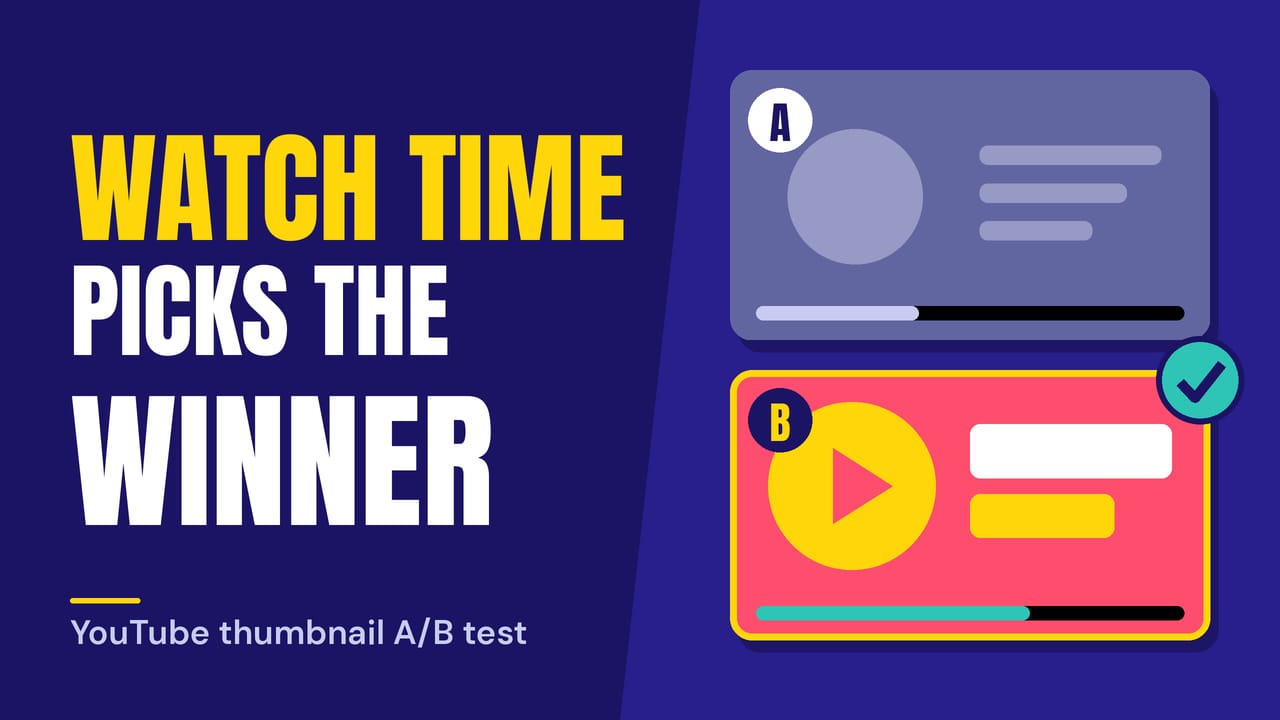
You have one video that deserves more views and three thumbnail ideas you can't choose between. A YouTube thumbnail A/B test settles it without a vote among friends. You upload up to three options, YouTube shows them to different parts of your audience at the same time, and the winner stays on the video for everyone. The detail many guides gloss over is how that winner is picked: by watch time, with clicks counting only if viewers stay, and that changes how you should build the options.
What the test actually measures
YouTube's Help page for A/B tests says the title or title and thumbnail combination with the highest watch time is shown to all viewers once the test ends. Plenty of articles describe thumbnail testing as a click contest. YouTube's own description points at something else: whether the people who clicked stayed to watch.
That has a practical consequence. A thumbnail that overpromises can win clicks and still lose the test, because viewers who feel misled leave early. YouTube's thumbnail and title tips make the same point about accuracy, warning that a misleading title can hurt discoverability when viewers stop watching. The A/B page adds that good packaging helps viewers avoid clicking the wrong video in the first place.
So I'd build every option around a promise the video keeps in its first minute. A shocked face is fine if something shocking happens early. If it doesn't, that variant is a liability, however many clicks it earns.
One more number worth handling carefully. The same tips page says 90% of the best performing videos have custom thumbnails. The figure describes what top channels do. Whether a custom image lifts one particular video is the question a test answers.
Setting one up in YouTube Studio
On desktop, open Content in YouTube Studio, pick an eligible long form video, open its Details page, choose A/B Testing, select Thumbnail only, upload your files and click Done. That is the sequence in vidIQ's current walkthrough, which also notes the feature used to be called Test & Compare. YouTube Help allows up to three options per test.
Access is the usual snag. Toptal's guide says you need to be in the YouTube Partner Program with advanced features enabled, so check that before you hunt for a missing button.
A few rules from YouTube Help are worth knowing before you start:
Shorts can't be tested, and a video marked age-restricted won't run a test.
A test should finish within two weeks.
Changing the title or thumbnail by hand during a test stops it, and you have to restart.
That last rule is the one that bites. If you spot a typo on day three, you lose the data collected so far.
Which test to run first
YouTube lets you vary the thumbnail, the title, or both together. Each answers a different question.
Test typeWhat YouTube variesUse it whenThumbnail onlyThe pictureThe title already works in search and the image is the doubtTitle onlyThe wordsThe picture is settled but the video is hard to findTitle and thumbnailBoth at onceYou are rebuilding the whole package
I'd start with thumbnail only. When both change together and one combination wins, you can't tell which half did the work, so the result is hard to reuse on the next video.
Three options that differ in idea
YouTube Help recommends diverse tests, because options that are too similar can make a test run longer without a clear winner. Swapping a font weight or nudging a colour is a similar option. A different subject, crop or piece of text is a diverse one.
The thumbnail tips page gives a useful way to split the audience. Content aimed at your subscribers might lean on familiar features, while content aimed at casual viewers might use a universally relatable emotion such as a shocked face. That gives you two options with different logic, and a third can be the plain, text-led version of the video's main promise.
The same page suggests taking pictures during your shoot so you have several thumbnail options when you upload. Do that. Three clearly different frames beat three edits of one frame.
When the result says "Performed Same"
Not every test produces a winner. YouTube Help says it's normal to receive results such as Performed Same or Inconclusive, and that you can read the report in the Reach tab of YouTube Analytics. A minimal difference between the options is one listed reason.
Read that as information. If three different ideas performed the same for watch time, pick the one you can reproduce fastest on future videos, and spend your effort on the title or the first minute instead.
Help also flags that results from tools outside YouTube may conflict with its own, because YouTube runs a true concurrent test across all options at once. If a third-party report disagrees with Studio, trust Studio.
Where a thumbnail downloader fits
A test needs files, and files go missing. Designers hand over flattened images, and the live thumbnail on an older video can be the only copy you still have. A free YouTube thumbnail downloader saves whatever YouTube currently serves for a public video, listed at its real pixel size. Google's Data API reference puts the largest public size at 1280 x 720.
That is enough to archive a winner once a test closes, or to save an old version before you replace it. YouTube's own tips suggest experimenting with updating older thumbnails, and a before and after pair is the cleanest record of what changed.
A second use is a reference folder. Save five or six thumbnails from videos in your niche and study how they handle composition and text. Treat them as study material only, because YouTube's terms restrict downloading content beyond what the service authorises and the artwork belongs to its creators. This is general information, not legal advice.
If you do this every week, the thumbnail bookmarklet opens the downloader with the current video already loaded, which saves the copy and paste.
Quick answers
Can I edit the thumbnail by hand after the test?
You can. YouTube Help says you can always change the title or thumbnail manually once the test has finished.
Do I need to be in the Partner Program?
According to Toptal's guide, yes, along with advanced features on your channel. YouTube's Help page for the test doesn't make that clear on its own, so check the channel's feature eligibility in Studio.
Where do I find the results?
In the Reach tab of YouTube Analytics, per YouTube Help.