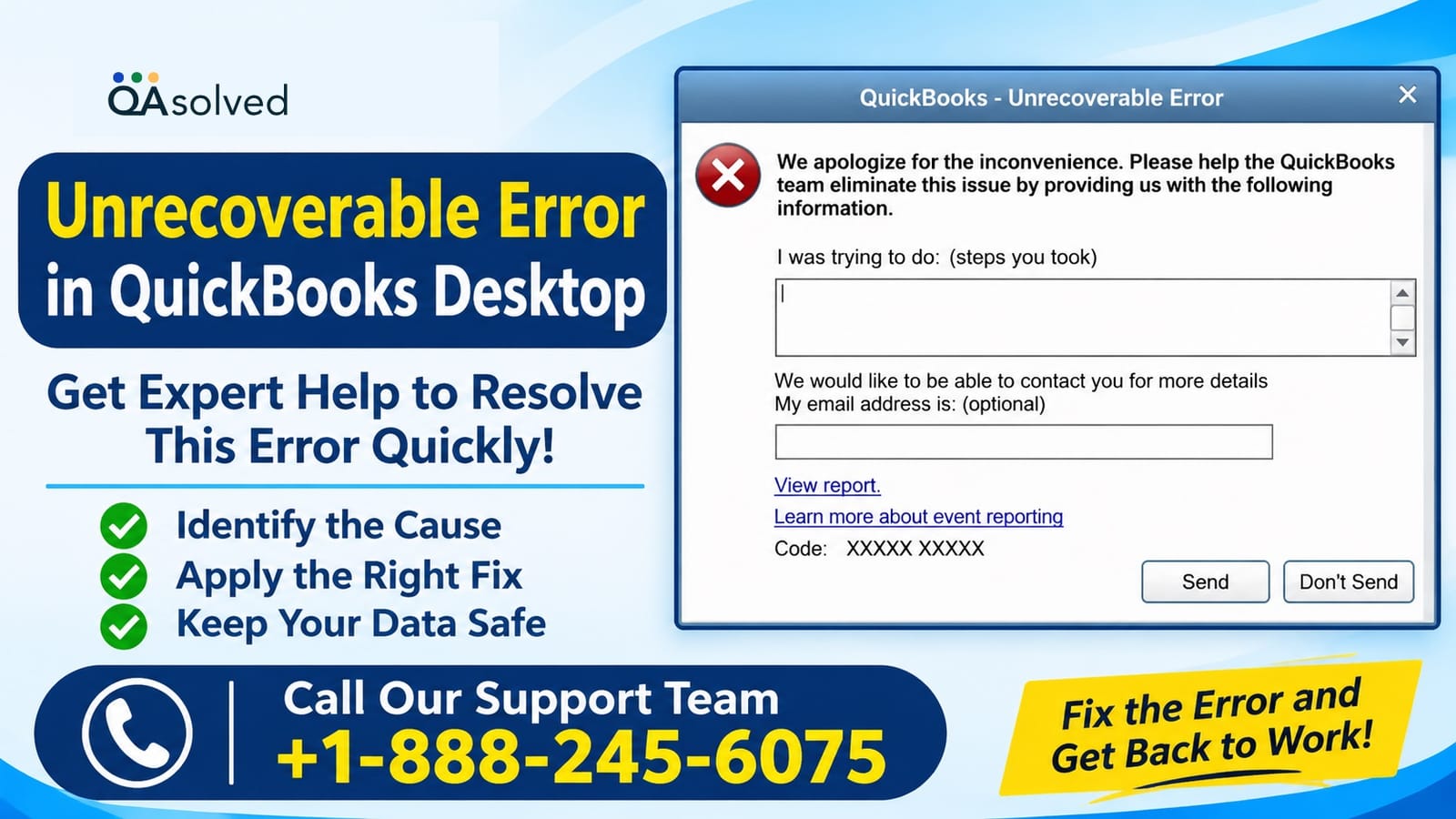
An Unrecoverable Error in QuickBooks Desktop can interrupt your accounting work without warning. You may encounter this error while opening a company file, printing reports, reconciling bank accounts, or performing other tasks. Sometimes, QuickBooks closes unexpectedly and displays an error message with a series of numbers.
This issue can affect your daily accounting activities and prevent you from accessing important company data. However, you can resolve most unrecoverable errors by identifying their cause and applying the right troubleshooting steps.
In this guide, we will explain the common reasons behind QuickBooks unrecoverable errors and share practical solutions to help you fix the problem.
What Is an Unrecoverable Error in QuickBooks Desktop?
An unrecoverable error occurs when QuickBooks Desktop encounters a problem that prevents it from completing an operation. When this happens, the software may freeze, close unexpectedly, or display an error message containing a unique error code.
These errors can appear when you launch QuickBooks, open a company file, perform payroll activities, or access specific accounting features.
The error code can vary depending on the cause. Therefore, identifying when the error occurs can help you choose the correct troubleshooting method.
Common Causes of QuickBooks Unrecoverable Errors
Several factors can trigger an unrecoverable error in QuickBooks Desktop. Understanding these causes can help you prevent the problem from happening again.
Here are some common reasons:
Missing Windows Updates: Outdated Windows components can create compatibility problems with QuickBooks.
Outdated QuickBooks Desktop: Running an older QuickBooks release may cause unexpected software issues.
Damaged Company File: Corrupted company data can prevent QuickBooks from completing certain operations.
Windows System Problems: Damaged system files or insufficient system resources may affect QuickBooks performance.
Program Installation Issues: Missing or damaged QuickBooks program components can trigger errors.
Network Problems: Connection issues between workstations and the server may interrupt company file access.
Printer or PDF Problems: Damaged printer drivers or PDF components can cause errors when printing or saving documents.
How to Fix Unrecoverable Error in QuickBooks Desktop?
Before trying advanced troubleshooting methods, create a backup of your company file. This step helps protect your accounting information if something goes wrong during the repair process.
Now, follow the solutions below to troubleshoot the issue.
Solution 1: Update QuickBooks Desktop to the Latest Release
An outdated QuickBooks version may contain bugs or compatibility issues. Updating the software can help resolve known problems and improve performance.
Follow these steps:
Open QuickBooks Desktop.
Select the Help menu.
Click Update QuickBooks Desktop.
Open the Update Now tab.
Select the updates you want to install.
Click Get Updates.
Close and reopen QuickBooks after downloading the updates.
Select Yes when QuickBooks asks you to install the updates.
After installation, reopen your company file and check whether the error still appears.
Solution 2: Open QuickBooks Desktop Without a Company File
Sometimes, a damaged company file or saved window settings can trigger an unrecoverable error during startup.
You can check whether the problem is related to your company file by opening QuickBooks without loading it.
Close QuickBooks Desktop.
Press and hold the Ctrl key on your keyboard.
Double-click the QuickBooks Desktop icon.
Keep holding Ctrl until the No Company Open window appears.
Release the Ctrl key.
If QuickBooks opens successfully, the issue may be related to your company file or saved window settings.
You can also try opening the company file while suppressing the saved windows:
Open QuickBooks Desktop.
From the No Company Open window, select your company file.
Press and hold the Alt key.
Click Open.
If QuickBooks asks for your login details, enter them.
Keep holding Alt until the company file opens.
Solution 3: Run QuickBooks Tool Hub
QuickBooks Tool Hub includes troubleshooting utilities that can help repair common program and company file problems.
Follow these instructions:
Close QuickBooks Desktop.
Download the latest QuickBooks Tool Hub version from the official Intuit website.
Open the downloaded QuickBooksToolHub.exe file.
Follow the installation instructions.
Accept the license agreement.
Open QuickBooks Tool Hub after installation.
Depending on the issue, you can use the following tools:
Program Problems: Helps troubleshoot QuickBooks program-related issues.
Company File Issues: Provides access to QuickBooks File Doctor.
Installation Issues: Helps resolve problems related to QuickBooks installation.
PDF and Printing Problems: Helps troubleshoot printing and PDF-related errors.
Run the appropriate utility and follow the instructions displayed on your screen.
Solution 4: Repair Your QuickBooks Desktop Installation
Damaged or missing program components can cause QuickBooks to display unrecoverable errors. Repairing the installation may restore the required files.
Here is how to repair QuickBooks:
Close QuickBooks Desktop.
Open the Windows Start menu.
Search for Control Panel and open it.
Select Programs and Features.
Find QuickBooks Desktop in the installed programs list.
Select QuickBooks and click Uninstall/Change.
Choose the Repair option.
Follow the on-screen instructions.
Restart your computer after the repair finishes.
Open QuickBooks again and check whether the error has disappeared.
Solution 5: Run QuickBooks File Doctor
If your company file contains damaged data or has network-related problems, QuickBooks File Doctor may help identify and repair the issue.
Use these steps:
Open QuickBooks Tool Hub.
Select the Company File Issues tab.
Click Run QuickBooks File Doctor.
Wait for the tool to open.
Select your company file from the available list.
If you cannot find the file, browse and locate it manually.
Choose the appropriate file and network troubleshooting option.
Enter your QuickBooks administrator password when requested.
Click Next and allow the scan to finish.
The scanning process may take several minutes. Once completed, open your company file and check its performance.
Solution 6: Update Windows
QuickBooks Desktop depends on Windows components to perform different accounting operations. Missing Windows updates may cause compatibility problems.
To update Windows:
Press Windows + I to open Settings.
Select Windows Update.
Click Check for Updates.
Allow Windows to search for available updates.
Download and install the updates.
Restart your computer if required.
After updating Windows, launch QuickBooks Desktop again.
Solution 7: Repair Printing and PDF Issues
An unrecoverable error may appear when you try to print invoices, email reports, or save documents as PDF files.
This can happen because of damaged printer drivers or problems with Windows printing components.
Try these steps:
Close QuickBooks Desktop.
Open QuickBooks Tool Hub.
Select Program Problems.
Click QuickBooks PDF & Print Repair Tool, if available.
Allow the utility to complete the repair.
Restart QuickBooks Desktop.
Try printing or saving a document as a PDF again.
If the issue continues, check your printer connection and update or reinstall the printer driver.
Solution 8: Use the Rebuild Data Utility
Company file damage can sometimes trigger an unrecoverable error when you perform accounting tasks.
The Rebuild Data utility can identify and repair certain data integrity problems.
Follow these steps:
Open QuickBooks Desktop.
Select File from the top menu.
Choose Utilities.
Click Rebuild Data.
Select OK when QuickBooks asks you to create a backup.
Choose a location to save the backup.
Follow the instructions to complete the backup.
Allow QuickBooks to rebuild your company data.
Once the process finishes, select File > Utilities > Verify Data to check whether any data problems remain.
If Verify Data reports additional issues, follow the recommended repair instructions or contact a qualified QuickBooks data recovery professional.
How to Fix Unrecoverable Errors in Specific QuickBooks Situations?
Some unrecoverable errors appear only when performing particular accounting activities. The following situations may require additional troubleshooting.
Unrecoverable Error When Opening a Company File on a Workstation
If QuickBooks works on the server but displays an unrecoverable error on a workstation, check your network connection and folder permissions.
You should also:
Verify that the company file is accessible from the workstation.
Check whether the QuickBooks Database Server Manager is running.
Confirm that the workstation has the correct folder permissions.
Update QuickBooks on all connected computers.
Check your network configuration.
Unrecoverable Error During Bank Reconciliation
If QuickBooks crashes while reconciling an account or viewing previous reconciliation reports, the company file may contain damaged data.
Run the Verify Data utility to identify potential problems. If QuickBooks detects damage, use the appropriate repair method after creating a backup.
Avoid making changes to previously reconciled transactions until you understand how those changes will affect your account balances.
Unrecoverable Error While Importing Accountant's Changes
You may encounter this error while importing an accountant's changes into your company file.
Try these steps:
Update QuickBooks Desktop.
Create a backup of your company file.
Confirm that you are using the correct accountant's changes file.
Open the company file and try importing the changes again.
If the error continues, ask your accountant to review the changes file before attempting another import.
Unrecoverable Error While Writing Checks
Some users may encounter an unrecoverable error when accessing the Write Checks feature.
One historical cause involved QuickBooks Online Bill Pay. Intuit discontinued this service on December 2, 2019.
If your QuickBooks installation still contains an old connection to this service, disconnect it before continuing with other troubleshooting steps.
How to Prevent QuickBooks Desktop Unrecoverable Errors?
You can reduce the chances of encountering these errors by following a few maintenance practices.
Install QuickBooks Desktop updates regularly.
Keep Windows updated.
Create company file backups frequently.
Avoid shutting down your computer while QuickBooks is processing transactions.
Maintain a stable network connection when using multi-user mode.
Use reliable antivirus software and configure it correctly.
Verify company file data periodically.
Keep printer drivers and other system components updated.
These practices can help maintain QuickBooks performance and protect your accounting information.
Final Thoughts
An Unrecoverable Error in QuickBooks Desktop can occur because of outdated software, damaged company files, Windows problems, or corrupted program components. Although the error may interrupt your accounting activities, several troubleshooting methods can help restore normal functionality.
Start by updating QuickBooks and Windows, then try opening your company file without saved windows. If the problem continues, use QuickBooks Tool Hub, File Doctor, or the Rebuild Data utility to identify and repair the issue.
Always create a backup before performing company file repairs. If none of these solutions works, seek assistance from a qualified QuickBooks professional to avoid further data damage.
Frequently Asked Questions (FAQs)
1. Why does QuickBooks Desktop display an unrecoverable error?
QuickBooks Desktop may display an unrecoverable error because of damaged company data, missing updates, corrupted program files, network issues, or Windows compatibility problems.
2. How do I fix an unrecoverable error when opening QuickBooks?
First, update QuickBooks Desktop and try opening it without a company file. You can also suppress saved windows, run QuickBooks Tool Hub, and check your company file for damage.
3. Can a damaged company file cause QuickBooks unrecoverable errors?
Yes. Damaged company file data can prevent QuickBooks from completing certain operations. Run Verify Data to identify possible damage and use the appropriate repair method.
4. Does QuickBooks Tool Hub fix unrecoverable errors?
QuickBooks Tool Hub can help troubleshoot several issues that may cause unrecoverable errors, including program problems, installation issues, company file damage, and PDF errors.
5. How do I repair QuickBooks Desktop without losing company data?
Create a backup of your company file before repairing QuickBooks. You can then use the Repair option in Windows Programs and Features to fix damaged program components.
6. Can outdated Windows cause an unrecoverable error in QuickBooks?
Yes. Missing Windows updates and outdated system components can create compatibility issues. Installing available Windows updates may help resolve the problem.
7. Why does QuickBooks crash during bank reconciliation?
QuickBooks may crash during reconciliation because of damaged company data, program problems, or outdated software. Run Verify Data and check for available updates.
8. How can I prevent unrecoverable errors in QuickBooks Desktop?
Keep QuickBooks and Windows updated, create regular backups, maintain a stable network connection, and verify your company file periodically. These steps can help reduce software and data-related problems.