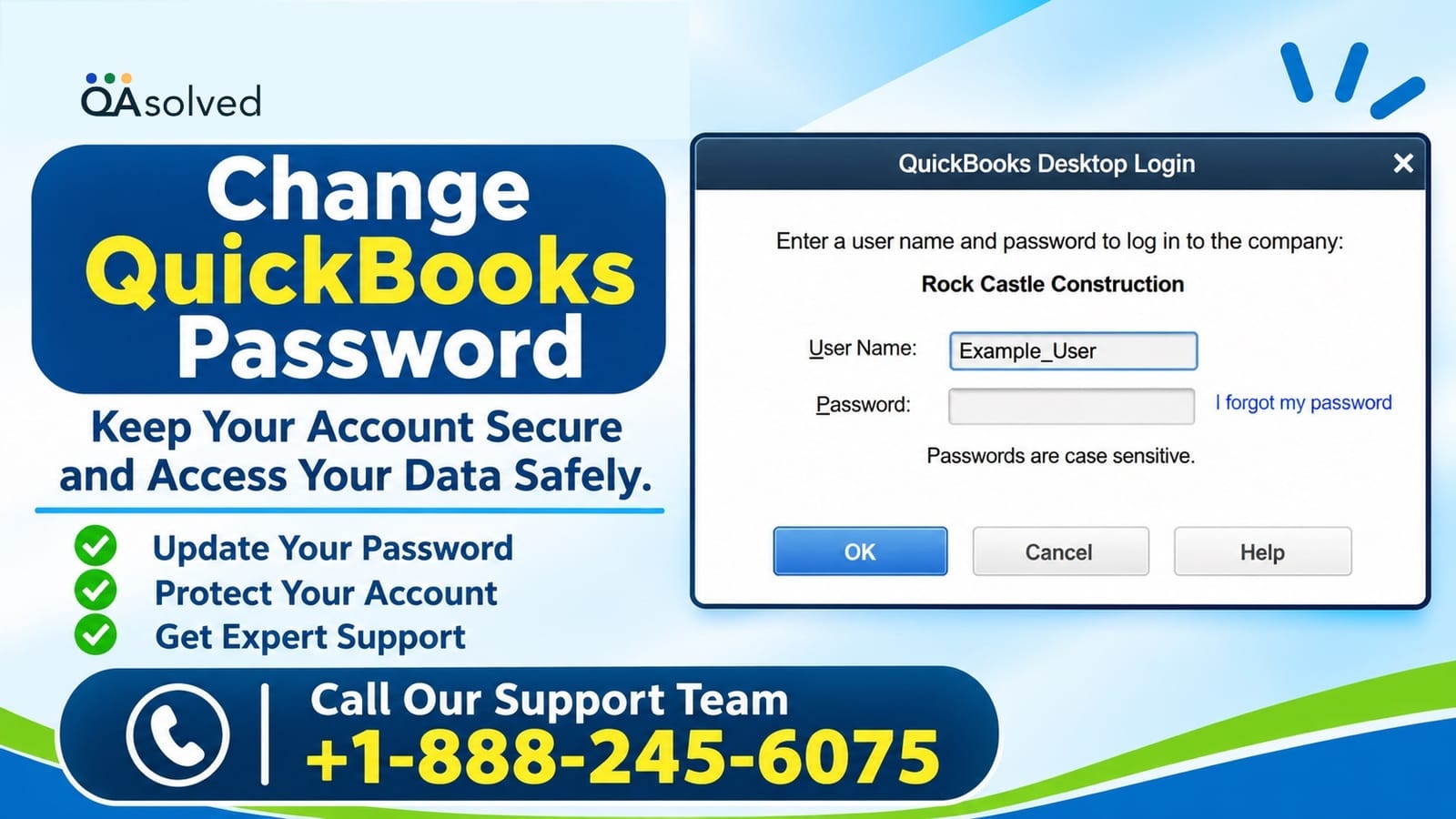
Keeping your QuickBooks account secure is important for protecting your business information and financial records. Whether you want to update an existing password, recover a forgotten login credential, or reset the administrator password, QuickBooks Desktop provides different options to help you.
Sometimes, users cannot access their company files because they forget their passwords or enter incorrect login details. In such situations, knowing how to Change QuickBooks Password can help you regain access and continue your accounting work.
The password recovery process depends on your QuickBooks Desktop version and the type of account you use. This guide explains how to change a regular user password, reset an administrator password, and troubleshoot common password-related problems.
Why Do You Need to Change Your QuickBooks Password?
There are several reasons why QuickBooks users may need to update their login credentials.
· You have forgotten your existing password.
· QuickBooks Desktop does not accept your current login details.
· You want to improve your account security.
· An employee needs a new user password.
· You suspect someone else knows your password.
· You cannot access your company file because of login problems.
Changing your password regularly and using strong login credentials can help protect your financial information.
How to Change QuickBooks Password for a Regular User
If you know the administrator password, you can easily change another user's password from QuickBooks Desktop. This method is useful when an employee forgets their login credentials or needs a new password.
Follow these steps:
1. Open QuickBooks Desktop on your computer.
2. Sign in to your company file using the administrator account.
3. Navigate to the Company menu.
4. Select Set Up Users and Passwords.
5. Click Set Up Users.
6. Enter the administrator password when prompted.
7. Find the user account whose password you want to change.
8. Select the username and click Edit User.
9. Enter the new password.
10. Click Next twice.
11. Select Finish to save the changes.
The selected user can now sign in using the updated password.
Note: You must have administrator access to change another user's password.
How to Change QuickBooks Admin Password
The administrator account has special permissions to manage company files, user accounts, and security settings. If you forget your admin password, you must complete the password recovery process.
QuickBooks offers different recovery options depending on your Desktop version.
Method 1: Change QuickBooks Password in Version 2020 and Later
QuickBooks Desktop 2020 and newer versions provide a built-in password recovery option. You can use your registered email address to receive a verification token.
Here is how:
1. Open QuickBooks Desktop.
2. Select the company file you want to access.
3. On the login screen, click I forgot my password.
4. Select your registered email address.
5. Click Next.
6. Open your email inbox and look for the verification message from Intuit.
7. Copy the password reset token.
8. Return to QuickBooks Desktop.
9. Enter the token in the required field.
10. Follow the on-screen instructions to create a new administrator password.
If your email address does not appear, select Don't see your email in the list above? and follow the additional verification instructions.
Also, check your spam or junk folder if you cannot find the verification email.
Once the verification process is complete, you can sign in using your new administrator password.
Method 2: Reset the Admin Password in QuickBooks 2019 and Earlier
Older QuickBooks Desktop versions may require additional account information to verify your identity.
Follow these instructions to recover your administrator password.
Step 1: Open the Password Recovery Option
· Launch QuickBooks Desktop.
· Open your company file.
· Select I forgot my password on the login screen.
Step 2: Enter Your Registered Information
QuickBooks will ask you to provide some account details.
Enter the following information:
· QuickBooks Desktop license number.
· Registered name.
· Email address.
· Phone number.
· ZIP code used when purchasing QuickBooks.
To locate your license number, press the F2 key on your keyboard while QuickBooks is open.
You can also check your registered account information through the Customer Account Management Portal (CAMPS).
Step 3: Submit Your Information
After completing the recovery form:
1. Check all the details for accuracy.
2. Click OK.
3. Wait for the verification code sent to your primary registered email address.
4. Open the email and copy the code.
5. Enter the code into QuickBooks Desktop.
If you do not receive the email, check your spam and junk folders.
Step 4: Create a New Password
After QuickBooks verifies your account information, follow the on-screen instructions to create a new administrator password.
Save your updated credentials in a secure location to avoid future login problems.
How to Fix QuickBooks Password Reset Problems
Sometimes, users may experience problems while trying to change their QuickBooks login passwords. For example, QuickBooks may reject the account information, or the verification email may not arrive.
Try the following solutions to resolve these issues.
1. Verify Your QuickBooks Account Details
Incorrect account information can prevent QuickBooks from completing the password recovery process.
Check your:
· License number.
· Registered name.
· Email address.
· Phone number.
· ZIP code.
Make sure these details match the information associated with your CAMPS account.
2. Check Your Email Account
If QuickBooks sends a password reset code but you cannot find it, check your spam and junk folders.
Also, verify that you selected the correct registered email address.
If the verification message does not arrive, wait a few minutes before requesting another code.
3. Use the Automated Password Reset Tool
If the regular recovery method does not work, you can try the QuickBooks Automated Password Reset Tool.
This utility is designed to help eligible users recover access to their QuickBooks administrator accounts.
Follow these steps:
1. Visit the official Intuit QuickBooks password recovery page.
2. Select your QuickBooks Desktop version.
3. Provide the required license and account information.
4. Complete the verification process.
5. Download the appropriate recovery utility if available.
6. Follow the instructions provided by the tool.
7. Try signing in to your company file again.
Always download the recovery tool from an official Intuit source to protect your company information.
4. Update QuickBooks Desktop
An outdated QuickBooks version can sometimes cause unexpected software issues.
To install the latest available updates:
1. Open QuickBooks Desktop.
2. Select the Help menu.
3. Click Update QuickBooks Desktop.
4. Choose the Update Now tab.
5. Click Get Updates.
6. Restart QuickBooks after completing the update.
Try accessing your company file again after installing the updates.
5. Contact QuickBooks Support
If you still cannot change your QuickBooks password, contact QuickBooks support for additional assistance.
Follow these steps:
1. Open QuickBooks Desktop.
2. Navigate to the Help menu.
3. Select QuickBooks Desktop Help/Contact Us.
4. Click Contact Us.
5. Follow the instructions displayed on the screen.
Explain the password issue and provide the requested account information to help identify the problem.
Tips to Keep Your QuickBooks Password Secure
After successfully changing your password, follow these security practices:
· Create a strong password using letters, numbers, and special characters.
· Avoid using common words or personal information.
· Never share your administrator password with unauthorized users.
· Store your login details in a trusted password manager.
· Review employee access permissions regularly.
· Install QuickBooks updates when available.
· Create regular backups of your company files.
These practices can help protect your accounting records and reduce the chances of unauthorized access.
Final Thoughts
Knowing how to Change QuickBooks Password can help you maintain account security and avoid unnecessary interruptions while working in QuickBooks Desktop.
You can update a regular user's password through the administrator account or recover a forgotten admin password using the built-in recovery option. The exact steps depend on your QuickBooks Desktop version.
If the standard recovery process does not work, try the Automated Password Reset Tool or contact QuickBooks support for further assistance. Always keep your login credentials secure and maintain regular company file backups.
Frequently Asked Questions (FAQs)
1. How do I change my QuickBooks Desktop password?
Open QuickBooks Desktop, sign in as the administrator, and navigate to Company > Set Up Users and Passwords > Set Up Users. Select the required user, click Edit User, and enter a new password.
2. Can I change my QuickBooks password without knowing the old password?
Yes. If you have forgotten your administrator password, select I forgot my password on the login screen and complete the account verification process.
3. How can I reset my QuickBooks administrator password?
Open your company file, select I forgot my password, verify your registered email address, and enter the verification token to create a new password.
4. Why is QuickBooks not accepting my new password?
This may happen because of incorrect account details, an incomplete verification process, or other login-related problems. Check your registered information and try the recovery process again.
5. Where can I find my QuickBooks Desktop license number?
Press the F2 key while QuickBooks Desktop is open. The Product Information window will display your license number and product details.
6. Can I change an employee's QuickBooks password?
Yes. Sign in using the administrator account, open the user management settings, select the employee's username, and choose Edit User to update the password.
7. What should I do if I don't receive the QuickBooks password reset email?
Check your spam and junk folders, confirm your registered email address, and wait a few minutes. You can also try requesting another verification code.
8. Does changing my QuickBooks password delete company data?
No. Changing a login password does not normally delete your company file, transactions, or accounting records. However, maintaining a recent backup is always recommended.
9. What is the QuickBooks Automated Password Reset Tool?
It is a recovery utility that can help eligible QuickBooks Desktop users reset their administrator passwords when the standard recovery process fails.
10. How often should I change my QuickBooks password?
You should update your password whenever you suspect unauthorized access, share credentials accidentally, or need to improve account security. Always use a strong and unique password.